
Smart Phone EMail Setup
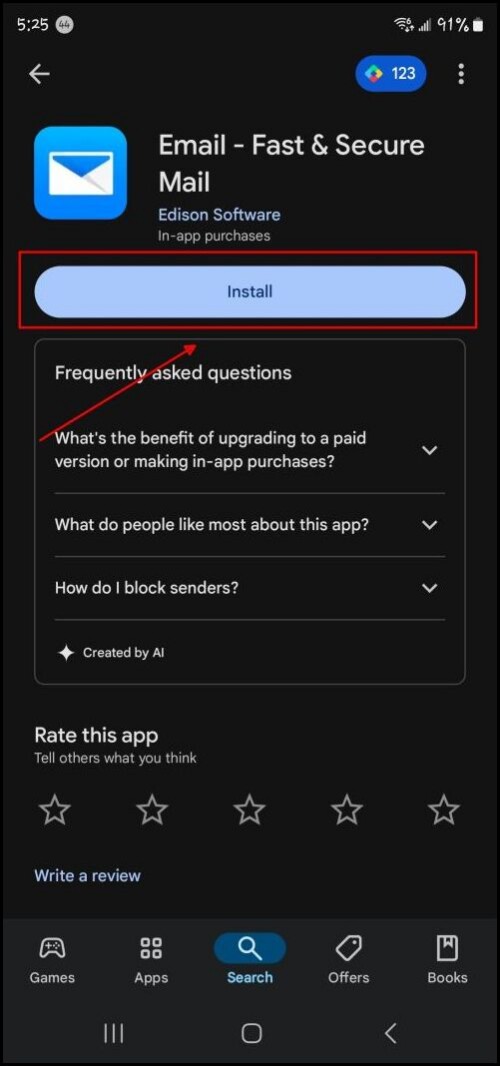
[ 2 ]
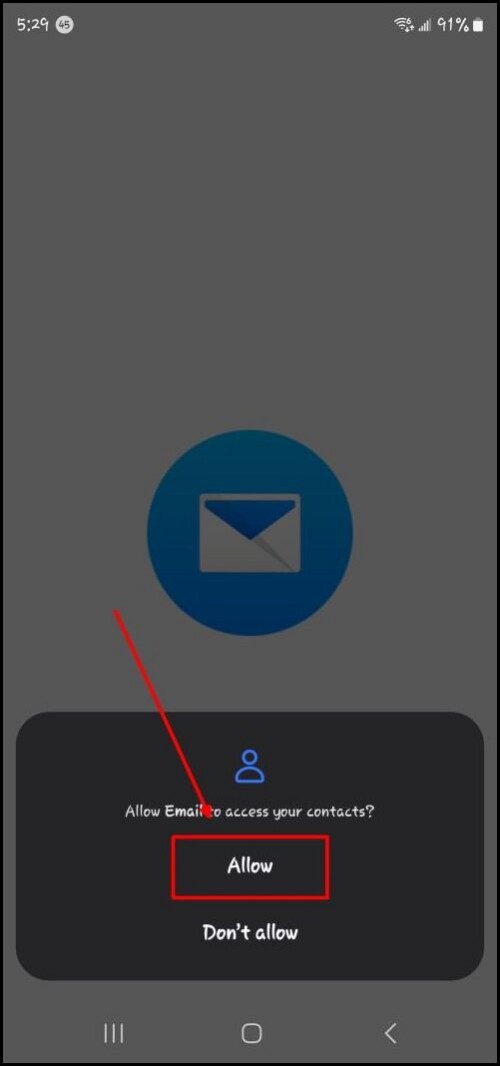
If prompted for permissions “Allow” them.
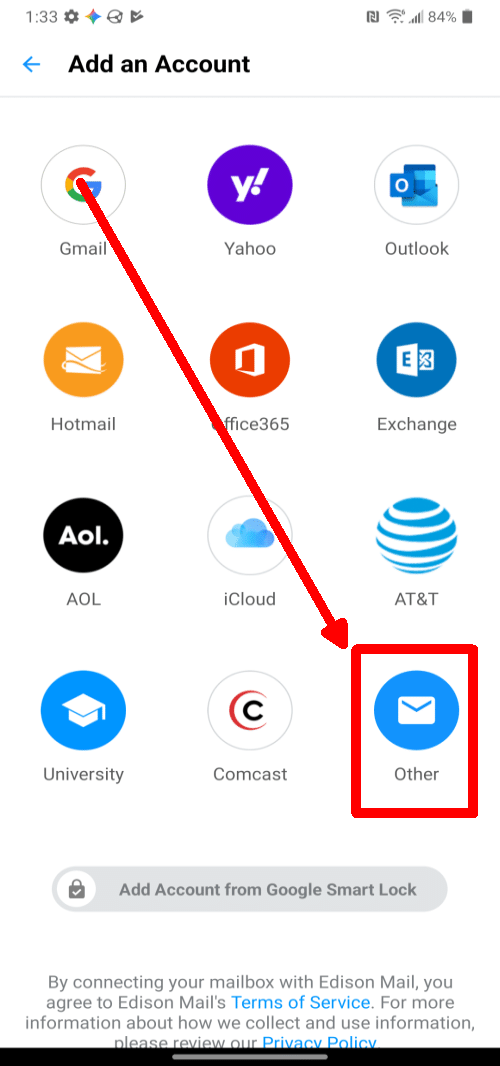
[ 3 ]
SELECT: “Other”
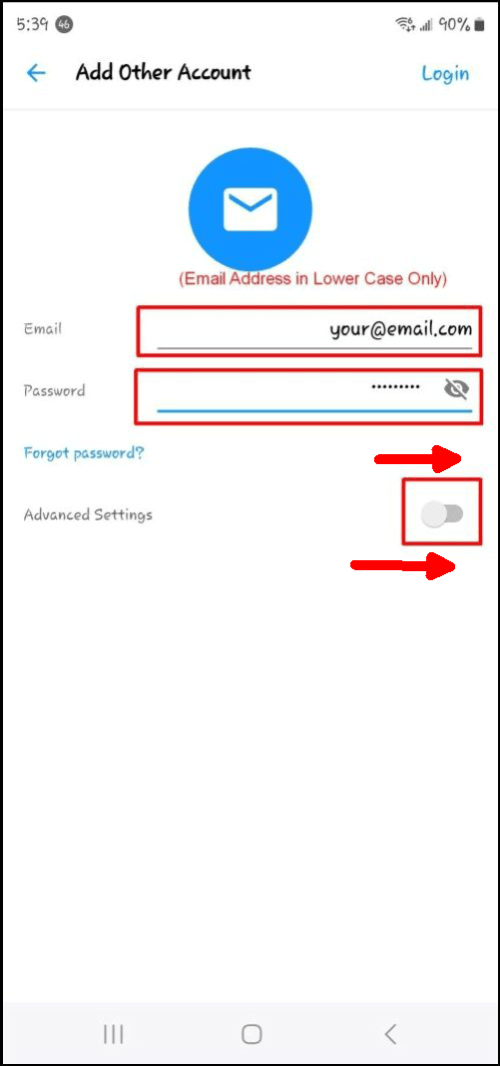
[ 4 ]
- Type in your full email address in lower case
- Type in your email password.
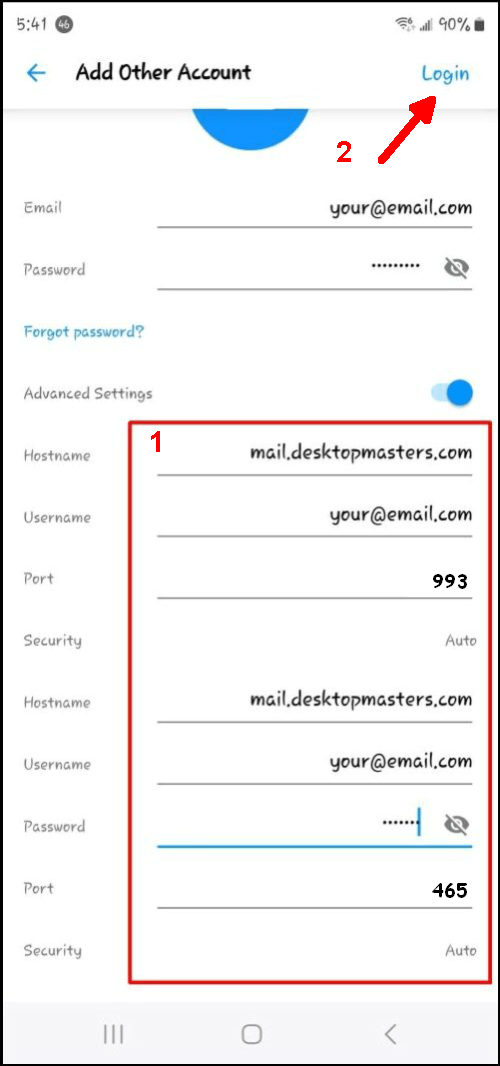
- Switch “Advanced” on.
- A new area below will be revealed to you.
[ 5 ]
Both areas get the same settings except for the Ports. Replace the information with your own. Remember, copy/paste is your friend. Security is likely alread set to “Auto” so you can just skip that setting if it is.
- Hostname: mail.desktopmasters.com
- UNLESS you have already been migrated, then type: mail2.desktopmasters.com (You will know if you are post migration)
- Username: Your email address in lower case.
- Port: 993
- Security: Auto
- Hostname: mail.desktopmasters.com
- UNLESS you have already been migrated then type: mail2.desktopmasters.com (You will know if you are post migration)
- Username: Your email address in lower case. (It says optional but it is not)
- Password: Your email password (It is case sensative)
- Port: 465
- Security: Auto
Once you have filled out all of the above information click “Login” at the top right corner of the page. (Scroll back up)
[ 6 ]
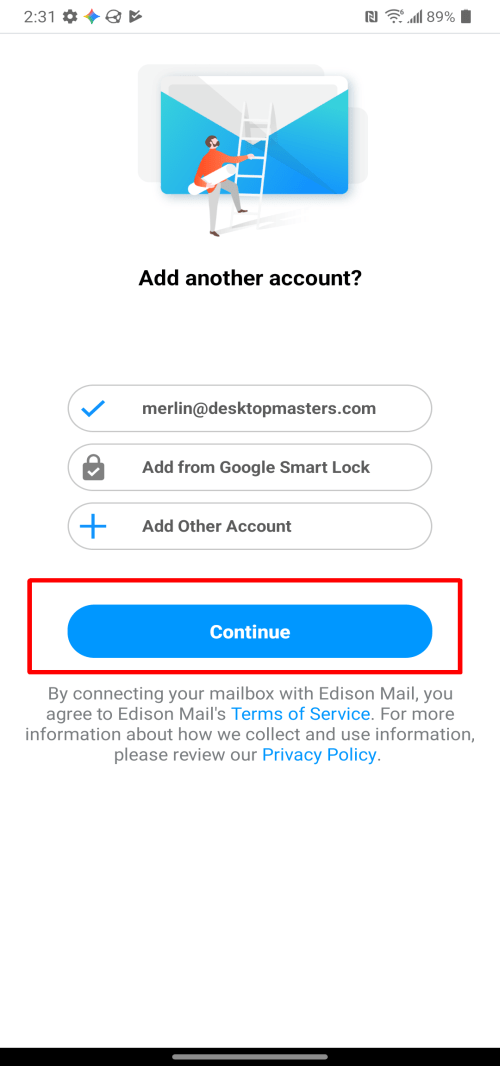
You have added the accunt.
But now we need to configure the application.
Press the [Continue] button and we will do just that… Continue…
[ 7 ]
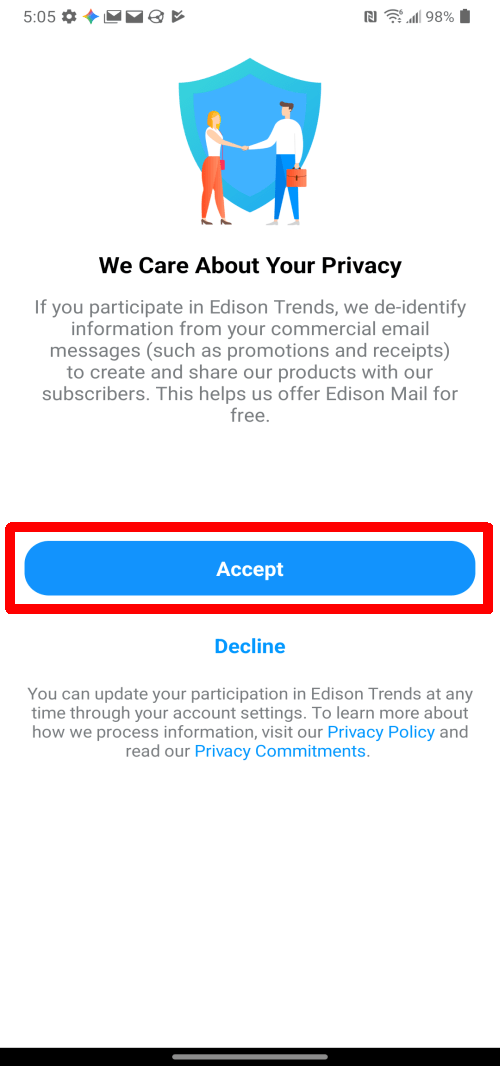
Just press Continue and wait on the next screen.
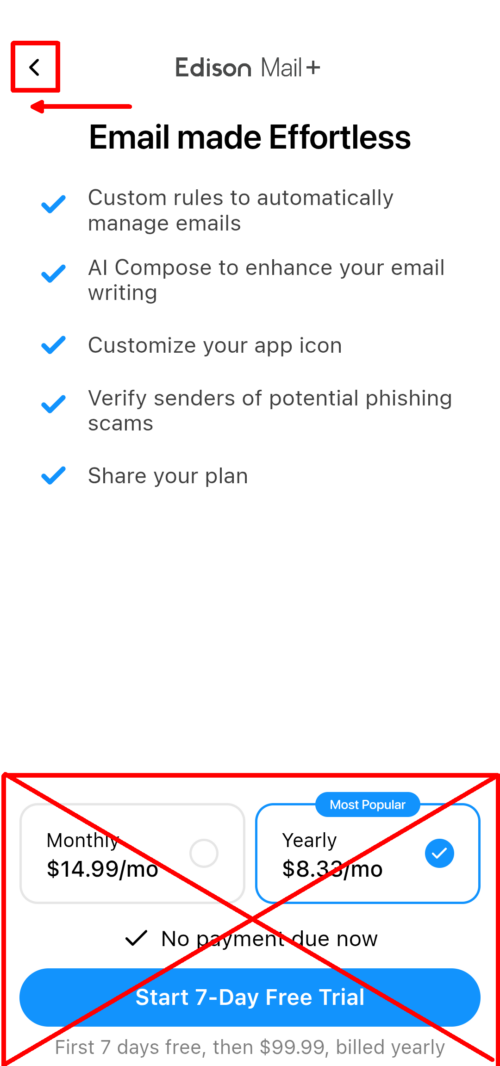
The next screen will show then you will likely get a popup to buy it.
That is convered next.
[ 8 ]
If this page pops up you can just ignore it and hit the back button in the top left corner.
This app is free to use without extended services.
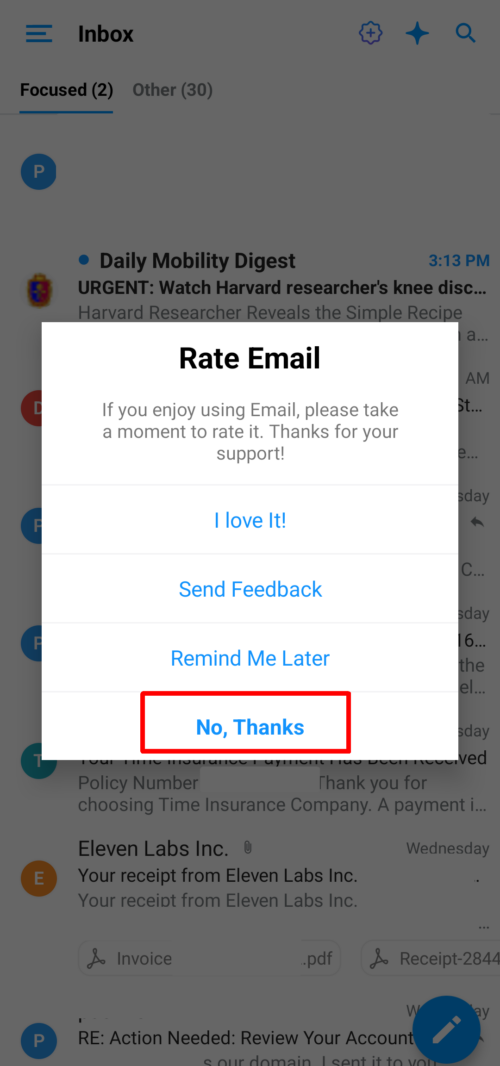
[ 9 ]
Just click “No Thanks”
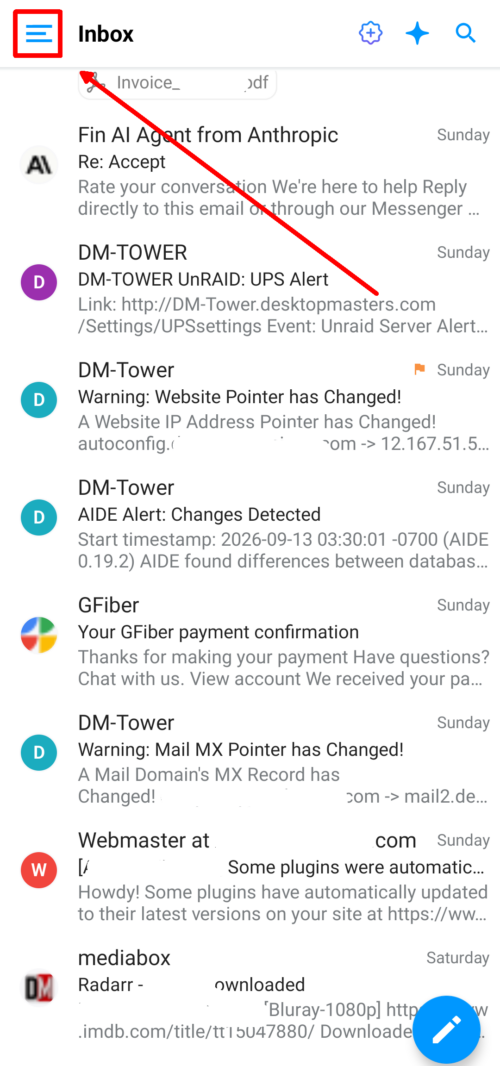
[ 10 ]
Click the Menu Icon in the top left corner of the screen.
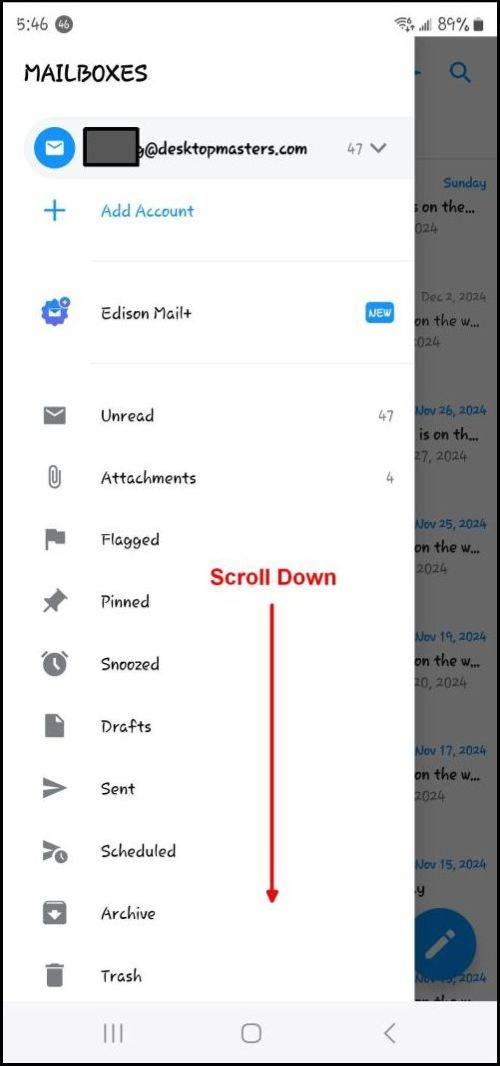
[ 11 ]
Scroll down to the bottom.
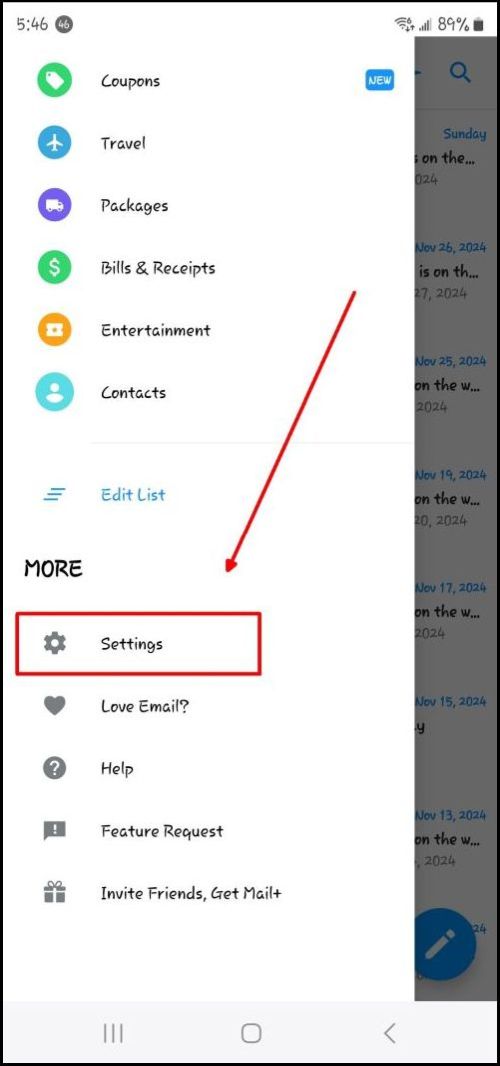
[ 12 ]
Choose: “Settings”
[ 13 ]
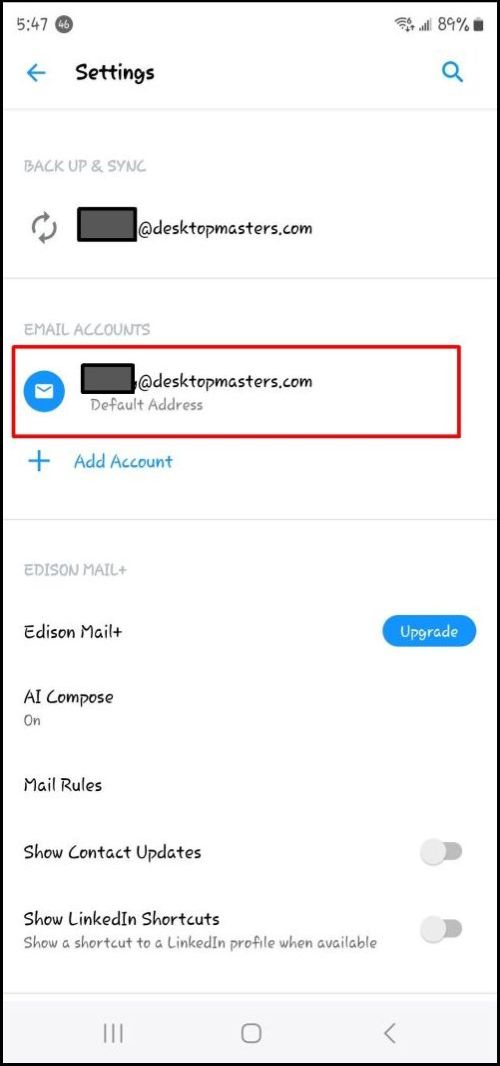
Under “EMAIL ACCOUNTS” select your email address.
[ 14 ]
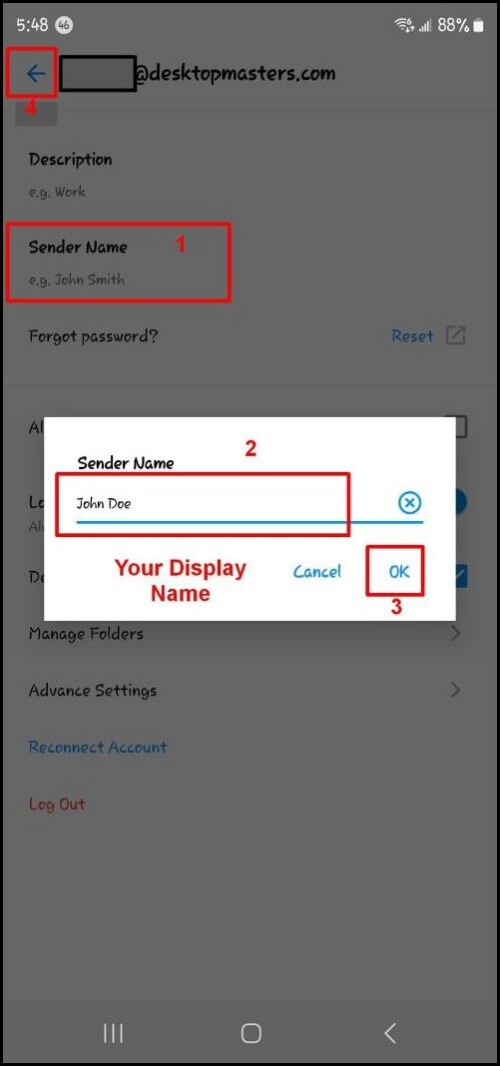
- Choose: “Sender Name”
- Type in your Display Name like “John Doe”. (What people see for your name on the top of the letters you send)
- Choose: [OK]
- Choose the back arrow at the top left corner.
[ 15 ]
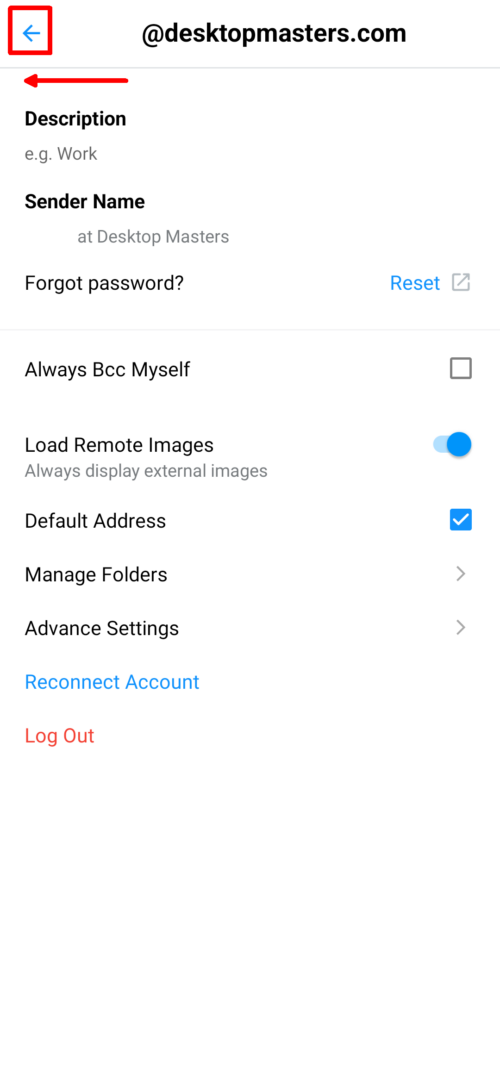
Hit the back button on the top left corner of the page.
[ 16 ]
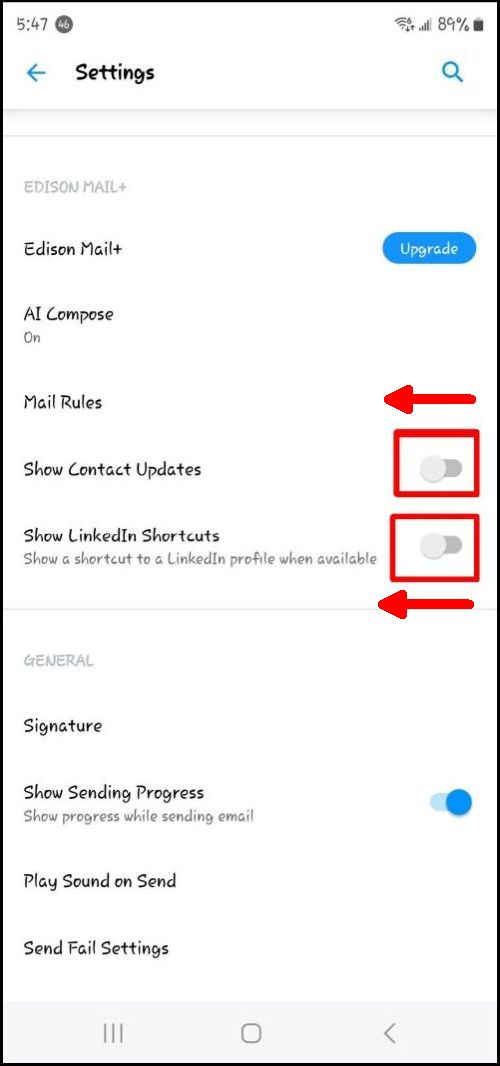
- Turn off “Show Contact Updates”
- Turn off “LinkedIn Shortcuts”
[ 17 ]
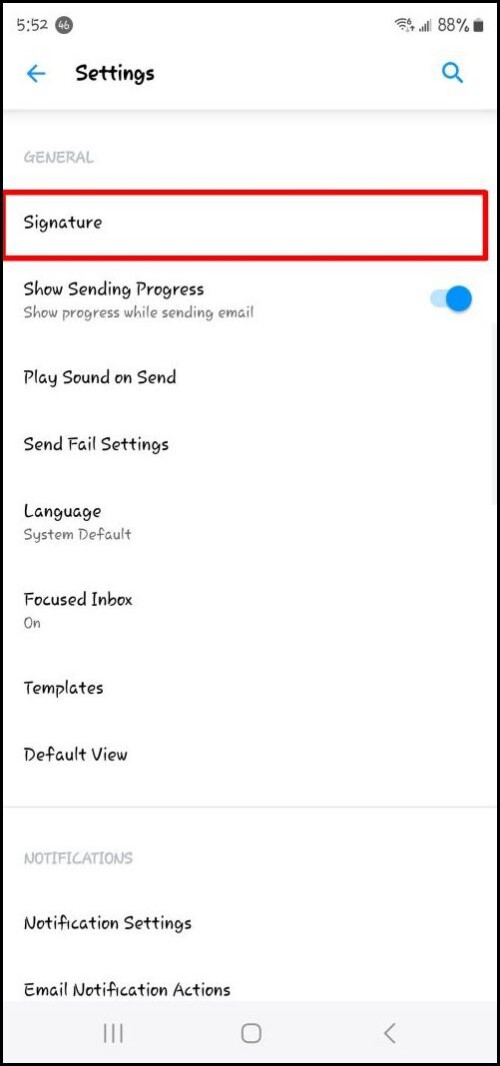
Select: “Signature”
[ 18 ]
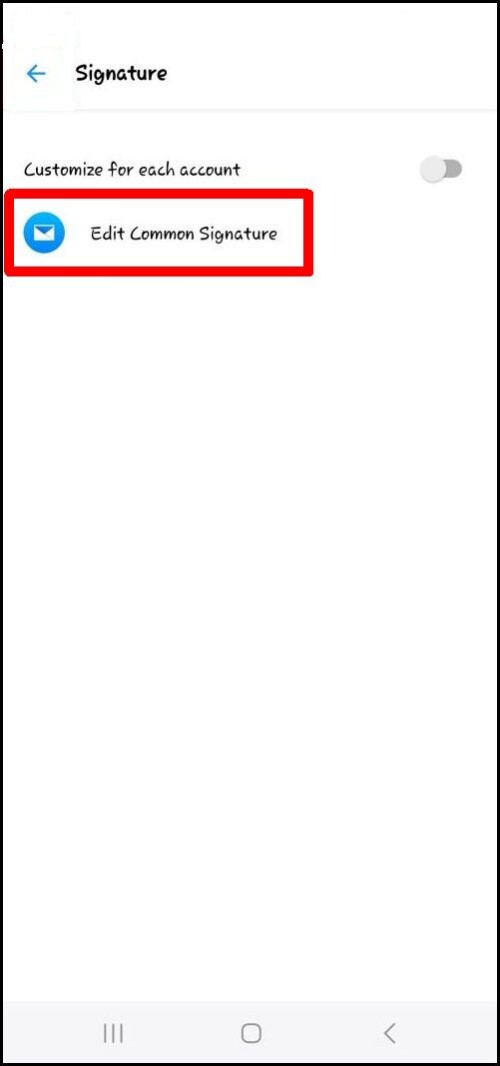
Choose: “Edit Common Signature”
[ 19 ]
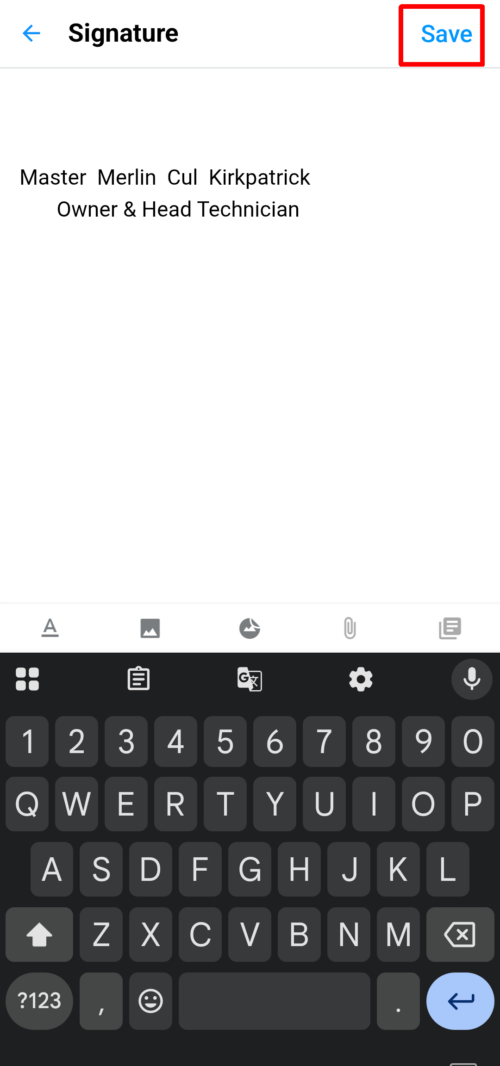
Type in a signature and
hit the [SAVE] button in the top right corner.
Then press the back ⬅️ button to get to the Settings Page.
[ 20 ]
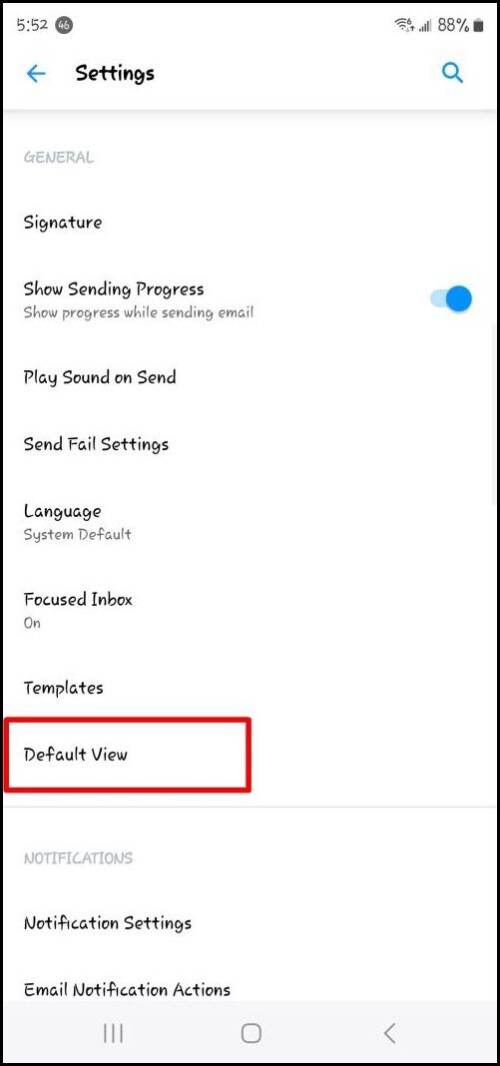
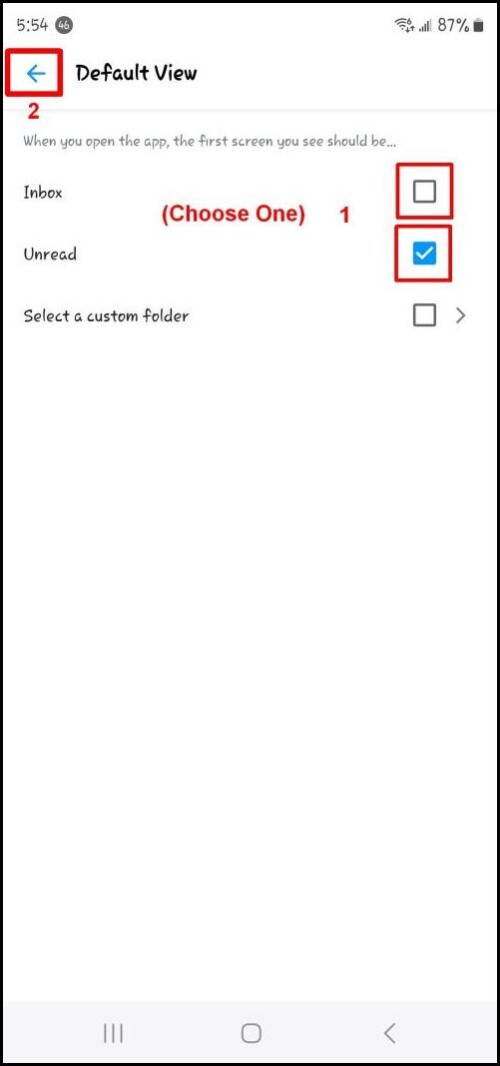
Scroll down to and select “Default View”
[ 21 ]
This page sets how you see your email when you first load the app…
If you want to see all your email choose “Inbox”
If you wish to only see your unread mail choose “Unread”
Note: When using the app, once your mail display is loaded you can easily change your view folder by hitting the menu in the top left corner.
Once you have made your choice hit the back button in the top left corner.
[ 22 ]
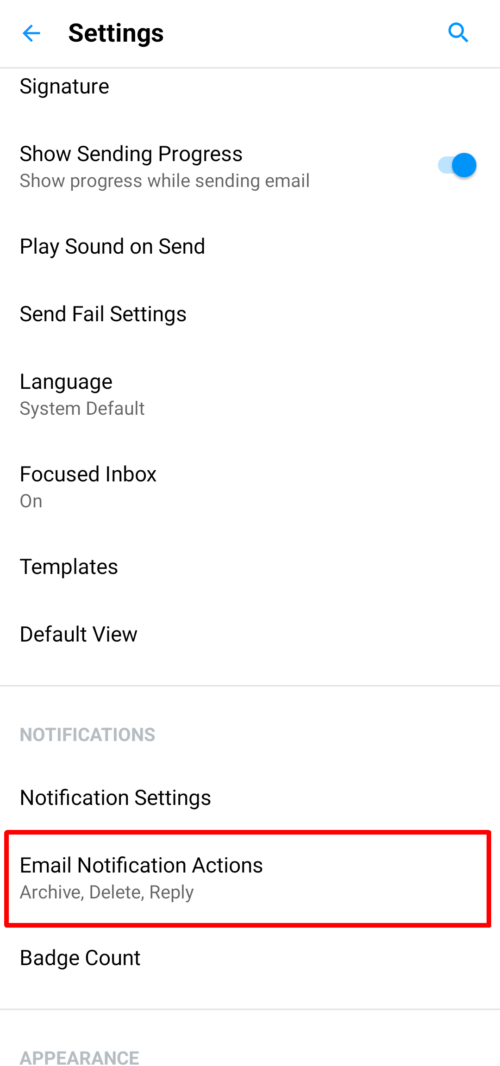
Scroll down to and select: “Email Notification Actions” (On iPhone it is “Notifications” then “Notification Actions” then “Advanced Settings”)
[ 23 ]
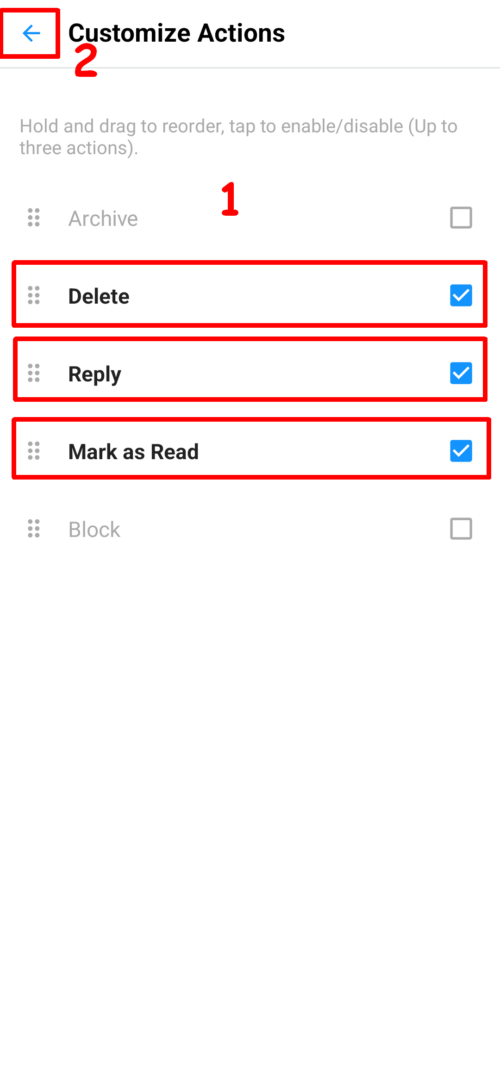
- Uncheck “Archive”, and check “Delete”, “Reply”, and “Mark as Read”
- Select the back arrow in the top left corner.
[ 24 ]
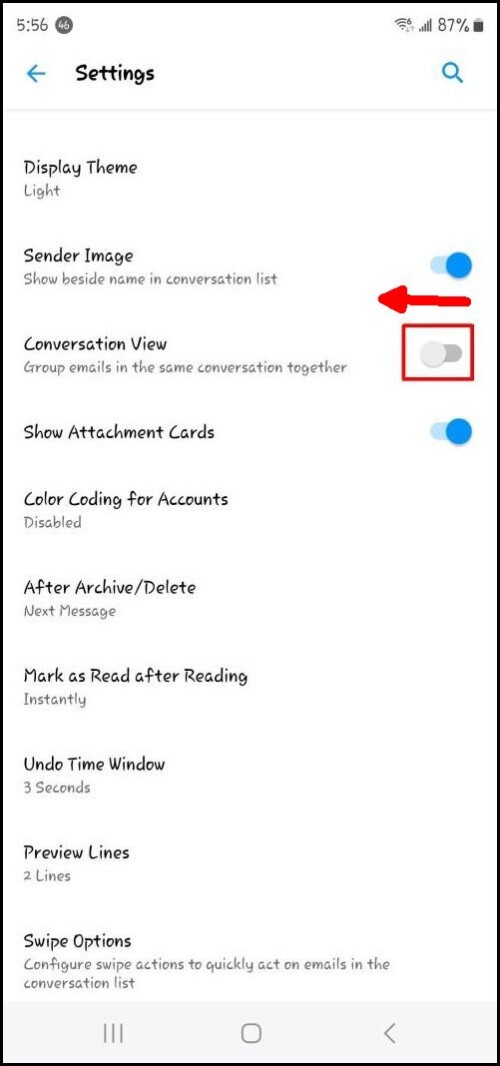
Note: On iPhone look for “Orignize mail by Thread”
Scroll down to “Conversation View” and switch it Off.
(Unless you like conversation view then leave it on)
[ 25 ]
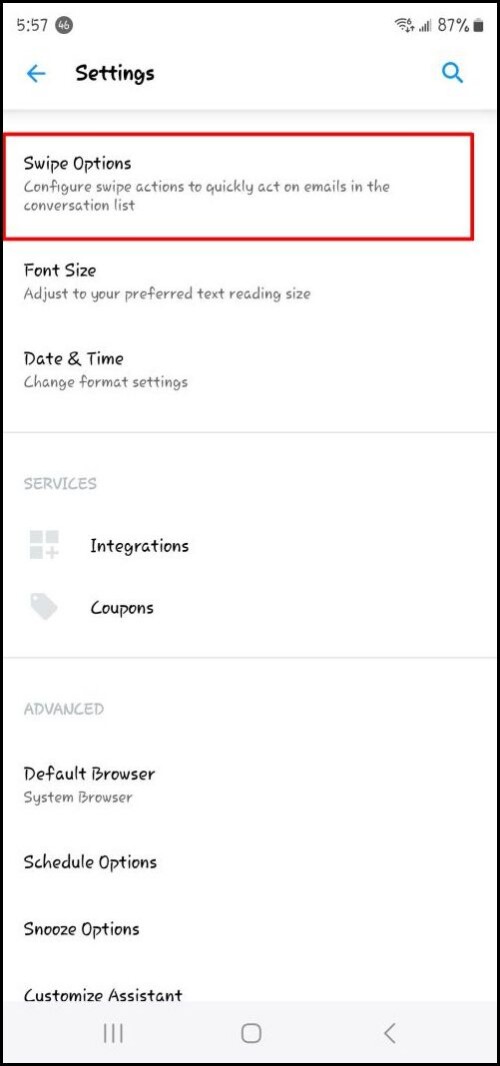
Scroll downt o and select “Swipe Options”
[ 26 ]
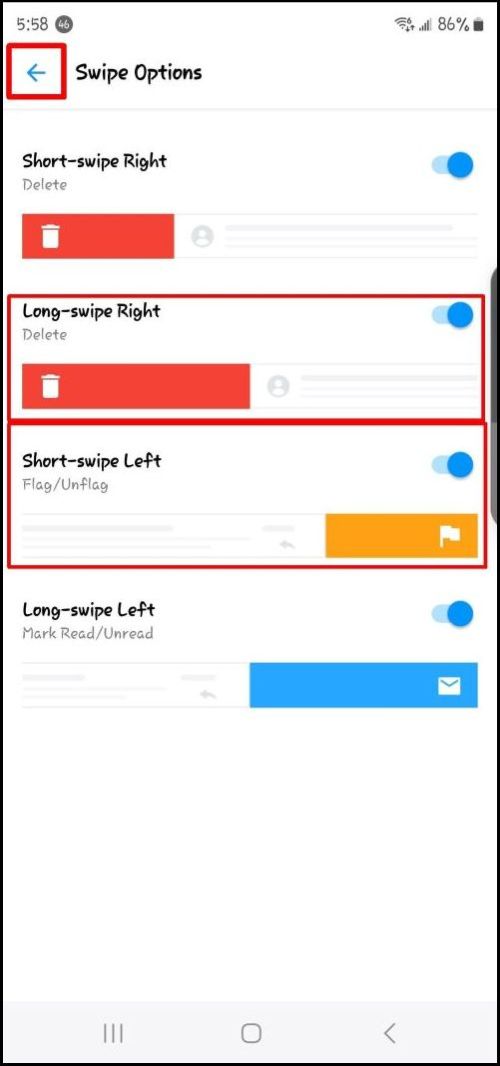
When you are looking at your email list in your inbox you have the ability to put your finger on a letter and slide it to the left or right. Depending on how far you slide and the direction you get different integrated options.
- Tap “Long-swipe Right” and choose “Delete” (iPhone Choose “Trash”)
- Tap “Short-swipe Left” and choose “Flag/Unflag”
At this time the sample picture will match your phone.
Press the back arrow in the top left corner.
That is it! There are a lot more settings you can play with. But the ones above are the most imporant ones for daily use. Just keep hitting your back button till you are back at your inbox. If you have any questions about any of the options just reach out and ask.