
Setup EMail on Windows Outlook (Classic)
- Close Outlook
- Launch the Legacy version of the Outlook Accounts Manager..
- Left Click the Windows menu and type “Control Panel”. Click on it when you see it in the list.
- On the top right switch from “Category” to “Large Icons”
- Look for “Mail (Microsoft Outlook)” in the list and click on it.
- Click on the “EMail Accounts” button.
- Select the “New” button
- At the bottom, select: “Manual setup or additional server types” and click the [Next] button.
- Select “Pop or IMAP”
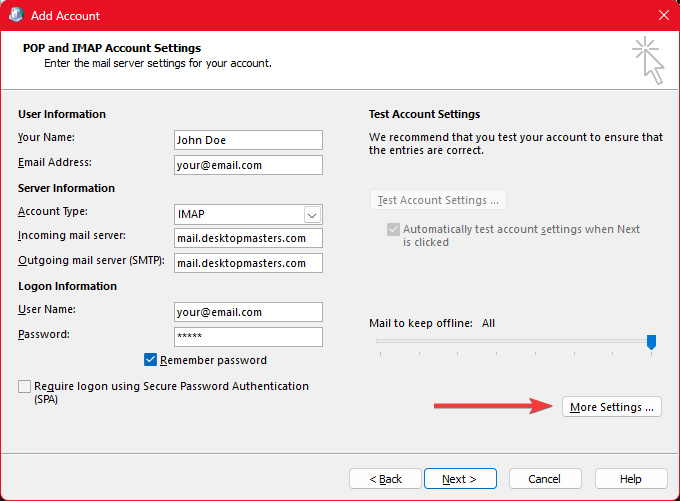
- Fill out the page..
- Note: Replace the below information with your own. EMail addresses should be in lower case only.
- Type your name: John Doe
- EMail Address: user@host.com
- Account Type: IMAP
- Incoming mail server: mail.desktopmasters.com
- User Name: user@host.com
- Password: (Your password)
- Press the [More Settings] button.
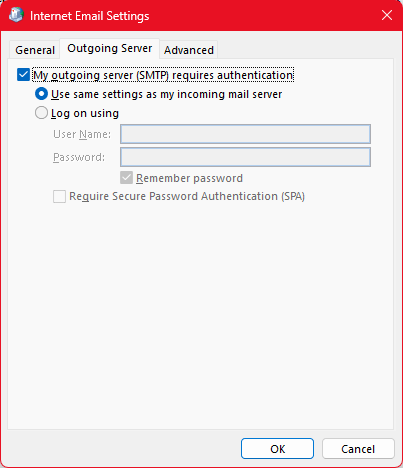
- Select the “Outgoing Server” tab and checkmark the “My outgoing server (SMTP) requires authentication”
- “Use the same settings” should already be selected.
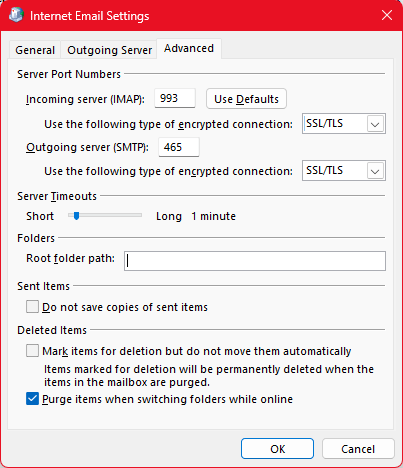
- Select the “Advanced” tab.
- In both dropdowns choose “SSL/TLS”
- Incoming Server (IMAP): 993
- Outgoing Server (SMTP): 465
- Note: It will default to 25, *CHANGE IT*
- Root folder path: INBOX
- Note: Use all upper case for INBOX
- Click: [Ok]
- Click: [Next]
- It should show you two successfull tests. (It will lag a bit when sending)
- Just keep clicking [Finish] and [Close] on all the remaining popups.
- Run Outlook. (Sometimes outlook hangs the first time you run it after doing this. That is normal. Let it sit for a minute then close it out and run it again)